SoftPhone Tutorial
Accessing Your Smartphone via the Customer Portal
You can access your smartphone after logging into the Customer Portal, provided you are logged in with the appropriate user and that user account has been assigned correct privileges.
Top Menu Bar
The Top Menu Bar, located at the top of the page on the Customer Portal. It provides links to various features that you have access to within the Customer Portal, including:
To access your phone, select HUD from the Top Menu Bar, as shown below.
The HUD
The HUD is the primary area where you interact with the Customer Portal. It provides access to the following features:
- Contacts
- Phone (softphone)
- Chats
- SMS
- Speed Dials
- File Transfers
- Voicemails
- Queues (if enabled)
The features available to you may vary depending on your assigned permissions and privileges.
Phone Tab
After accessing the HUD, a vertical menu will appear on the left side of the screen. Select the Phone tab, as shown in Figure 2, to open and use the softphone.
Softphone
After clicking the phone tab you should see an inactive softphone as seen in Figure 3.
In the top left corner next to 'contacts' you will see Make New Call. When you click that not only will you see Figure 4, but your smart phone will then go from inactive to active as seen in Figure 5.
Place Holder - Under Construction
Place Holder - Under Construction
Place Holder - Under Construction
Place Holder - Under Construction

Figure 2: Phone Tab
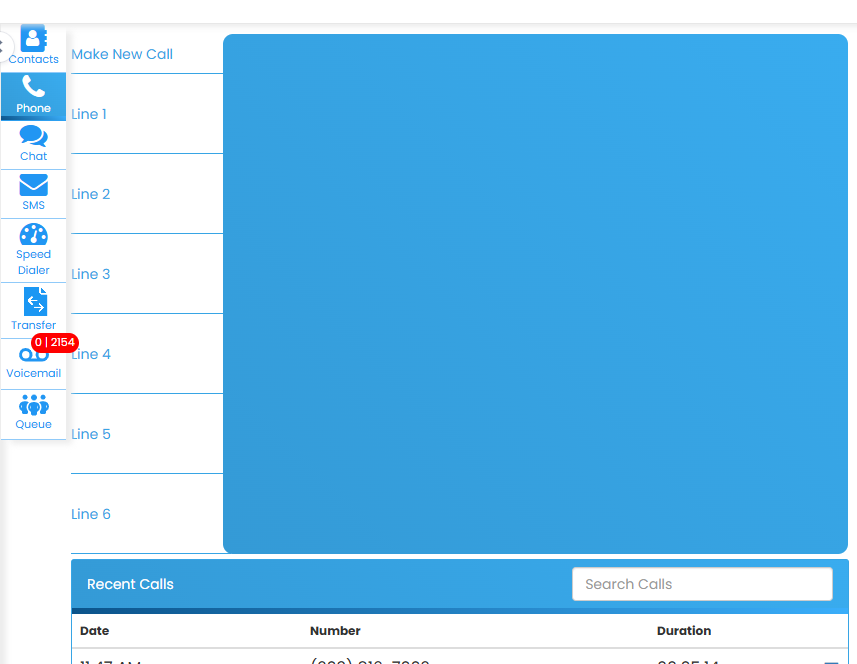
Figure 3: Inactive Softphone
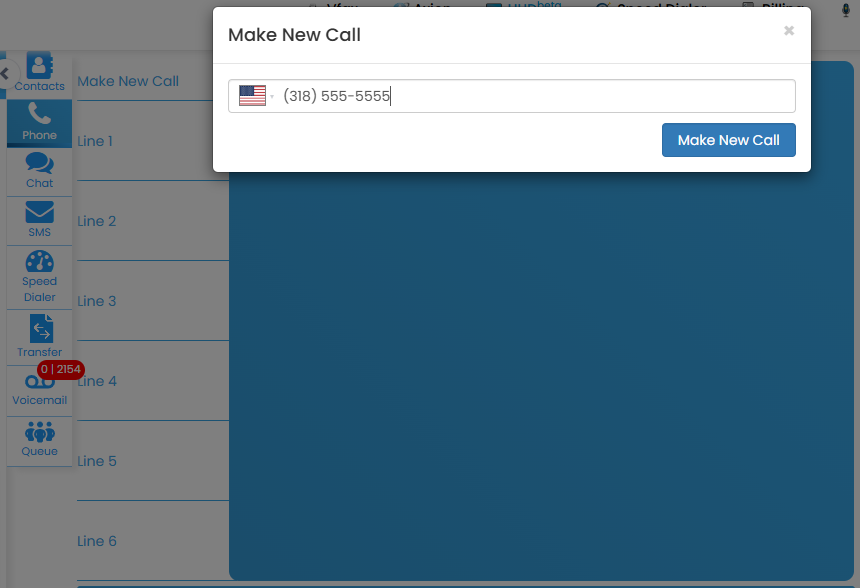
Figure 4: Make New Call
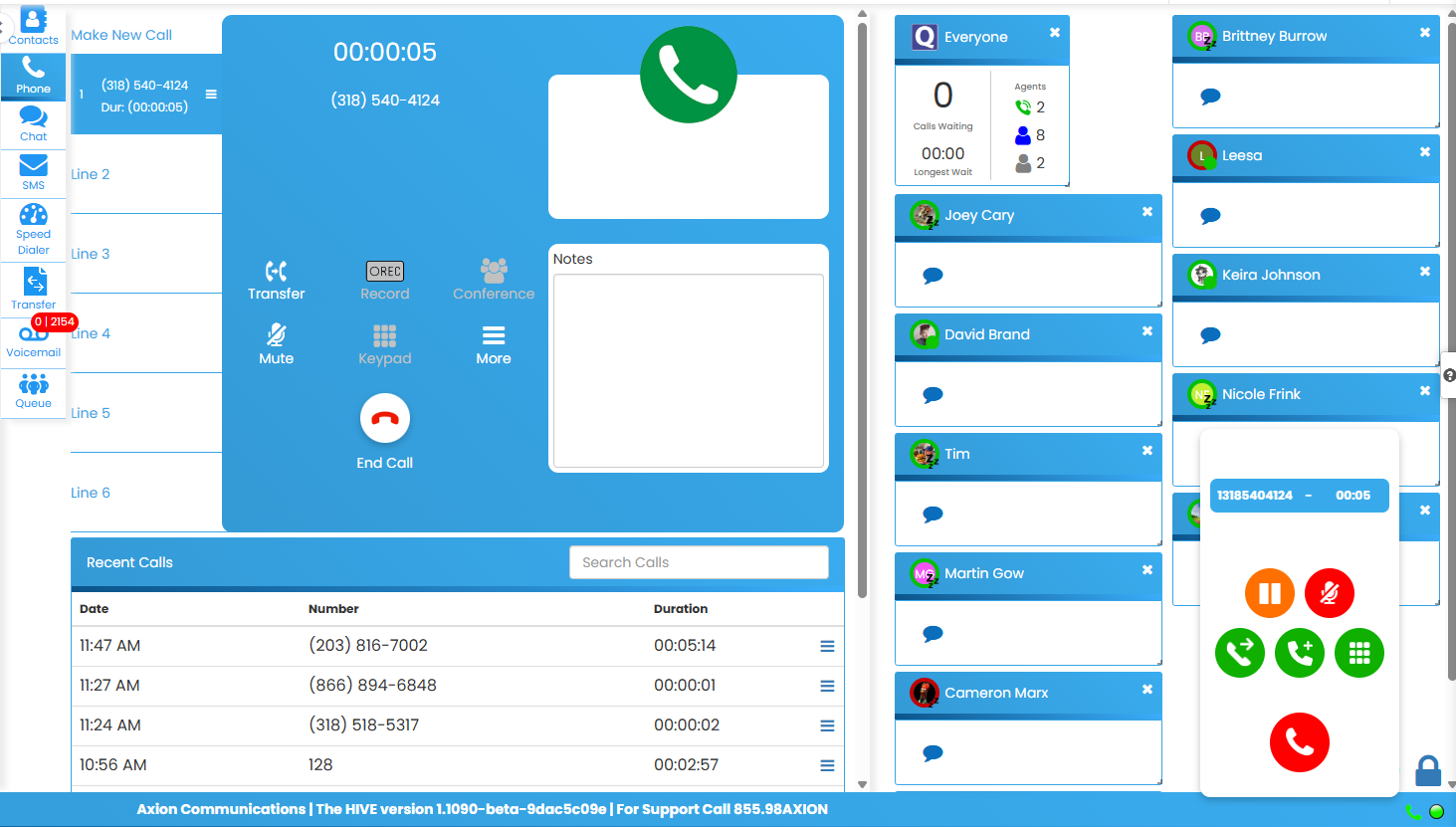
Figure 5: Active Softphone Call