Send A New Fax
Send A New Fax
Send a document to any connected fax number through the customer portal.
Overview
Using the Send a new fax page, you'll be able to compose faxes to send out to one or multiple recipients.
Source
The Source section shows the fax number that you're sending out of. If you have multiple numbers on your account, you can select the number you wish to send out of by clicking the + next to that number.
Destination
In the Destination section, you can enter in the number or numbers you wish to send a fax to. You must enter a destination in order for the 'SEND' button to appear. Press the + mark to add a new blank space in which you will type in the fax number you wish to send to. You must enter the fax number with no spaces or specials characters, and must define the area code. You can enter the number with or without the leading 1. Examples are 18056421456 or 8056421456.
Cover
The Cover section is where you choose which cover page, if any, you would like to apply to this fax.
Checking the box for "Use predefined cover page" will apply the cover page you previously created in the "Cover Page" section of your VFax Portal. If you don't remember what your cover page was set as, you can press the eye symbol to the right of this option to preview your cover page.
The "Choose File" button, will allow you to upload a custom cover page. Accepted formats are JPG, PDF, Adobe PostScript, TIFF, Microsoft Word, Excel, CSV, HTML & Plain Text formats.
Choosing the "Cover Page Designer" will open an easy to use form for creating a quick and professional fax cover sheet for this specific fax.
Attach file to fax
The 'Attach file to fax' section allows you to choose which files you wish to send. You can choose multiple files, pressing the + option to add a new document and then the "Choose File" button to locate that file from your local computer. Accepted formats are JPG, PDF, Adobe PostScript, TIFF, Microsoft Word, Excel, CSV, HTML & Plain Text formats.
Sending
When you've completed creating your fax to send, simply press the Send button at the bottom of the screen. This button will not appear until a 'Destination (Fax number)' is entered.
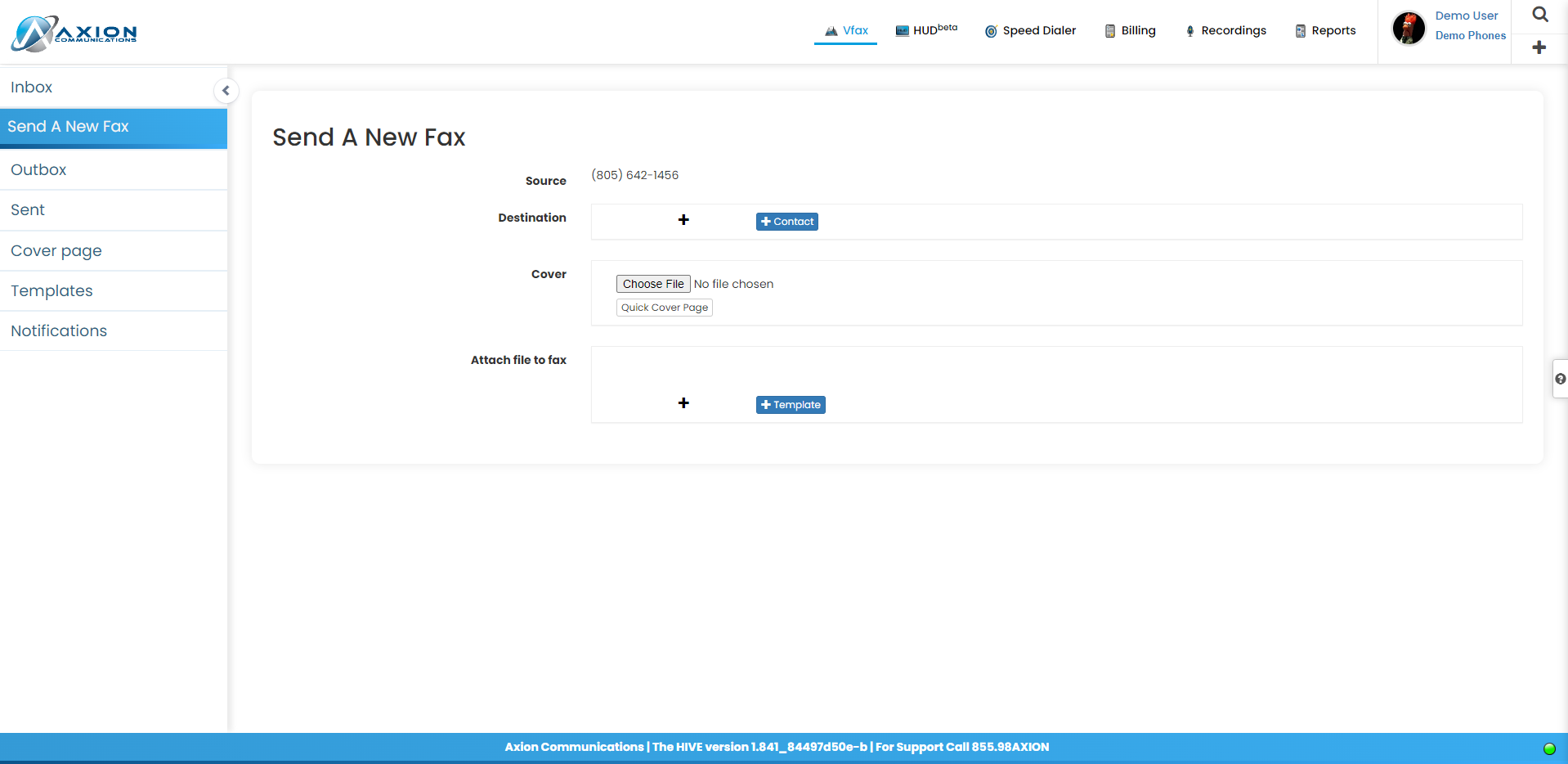
Figure 1: vFax Send A New Fax